









Business File Server: How Businesses Can Use Synology NAS as Their Central File Server
A practical guide for Australian organisations that want secure, centralised file storage that integrates with Windows and macOS, supports remote collaboration, and reduces IT overhead without giving up control of their data.
Quick Take
- Synology NAS delivers a dependable on premises file server with SMB file sharing, domain integration, granular permissions, and private cloud features for teams.
- Synology Drive adds sync and version history so users work anywhere while data remains under your control in Australia if you choose.
- Active Backup for Business and snapshots provide layered protection that supports fast recovery and ransomware resilience.
- Scale from compact desktop units to rackmount systems with expansion shelves and high availability, aligned to business growth and budgets.
Introduction: Why a central file server still matters
Cloud storage is popular, yet most organisations still rely on a central file server for daily work. A file server provides predictable performance on a local network, keeps sensitive data in your control, and integrates seamlessly with current identity and security policies. A Synology NAS provides the file server features companies expect with a clean management experience and a powerful application layer. Users connect over SMB using the same mapped drives they already know, while teams gain private cloud features through Synology Drive for sync, sharing, and version history. The result is a familiar storage platform that supports hybrid work without forcing every workflow into a public cloud subscription.
For Australian businesses that need to keep data within the country or meet specific client obligations, on premises storage remains important. A Synology appliance sits in your office or data centre, gives you control over encryption keys, and maintains access even when the internet is down. You can still sync selected folders with cloud services when it suits your processes, but the primary copy of business data stays on hardware you manage.
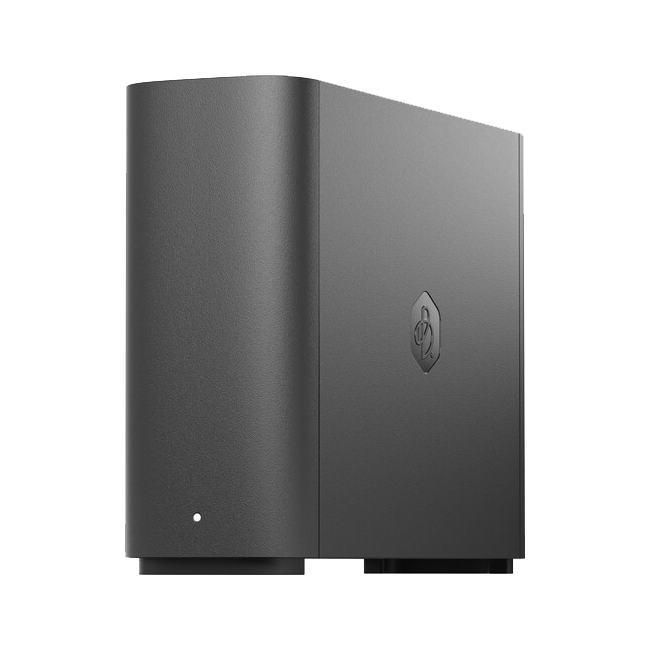
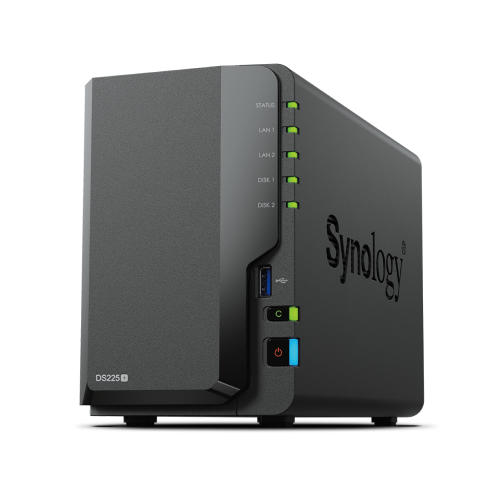
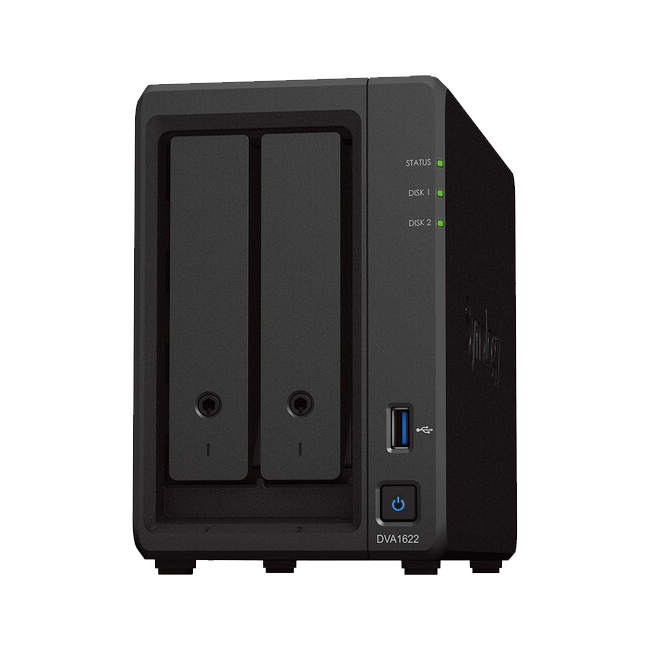
Image: Synology desktop NAS in a small office. Use a clean product shot with subtle office context.
Why choose Synology for business file serving
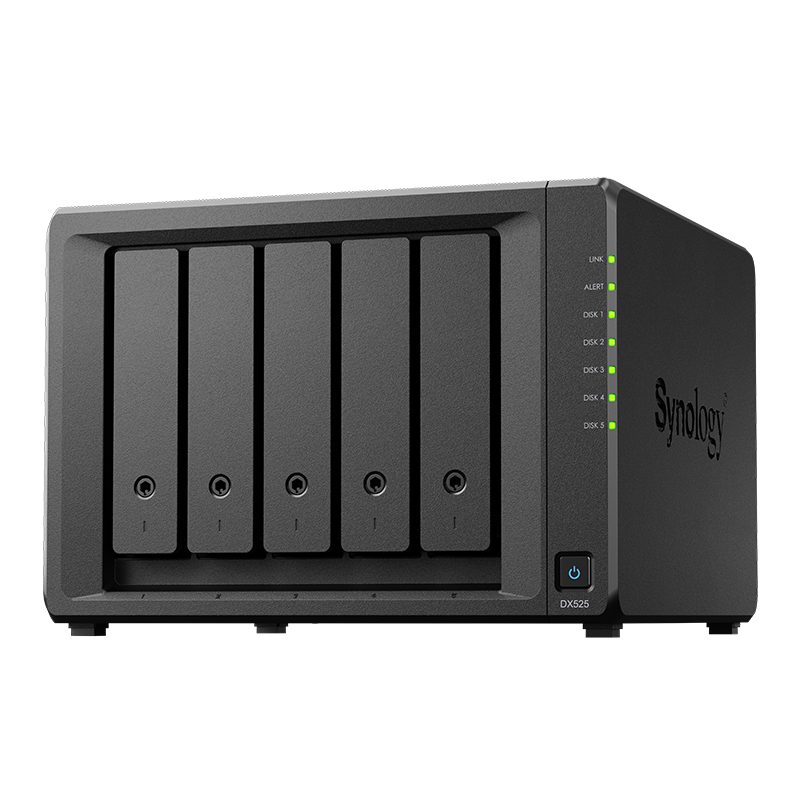
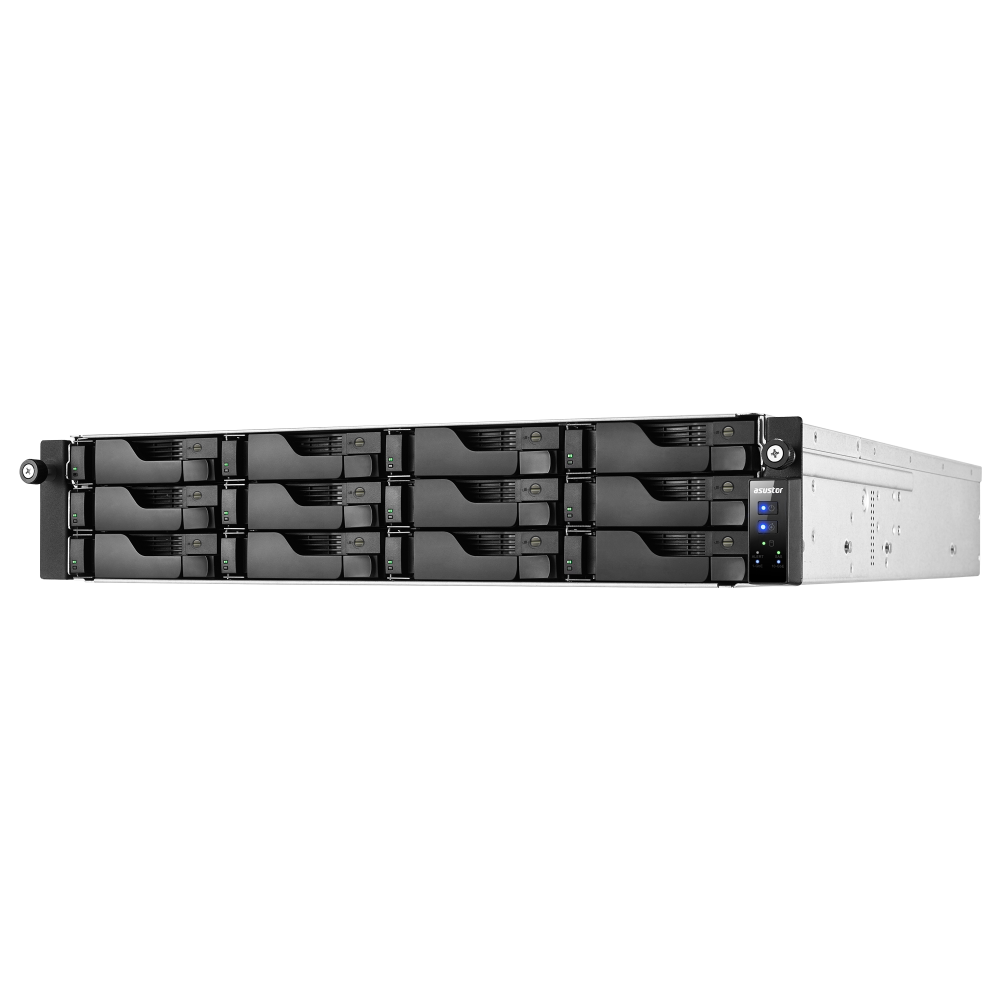
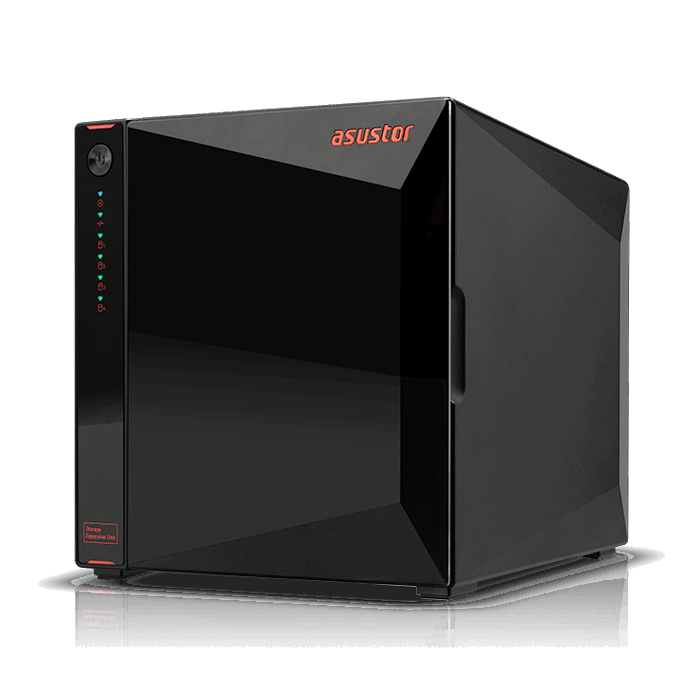
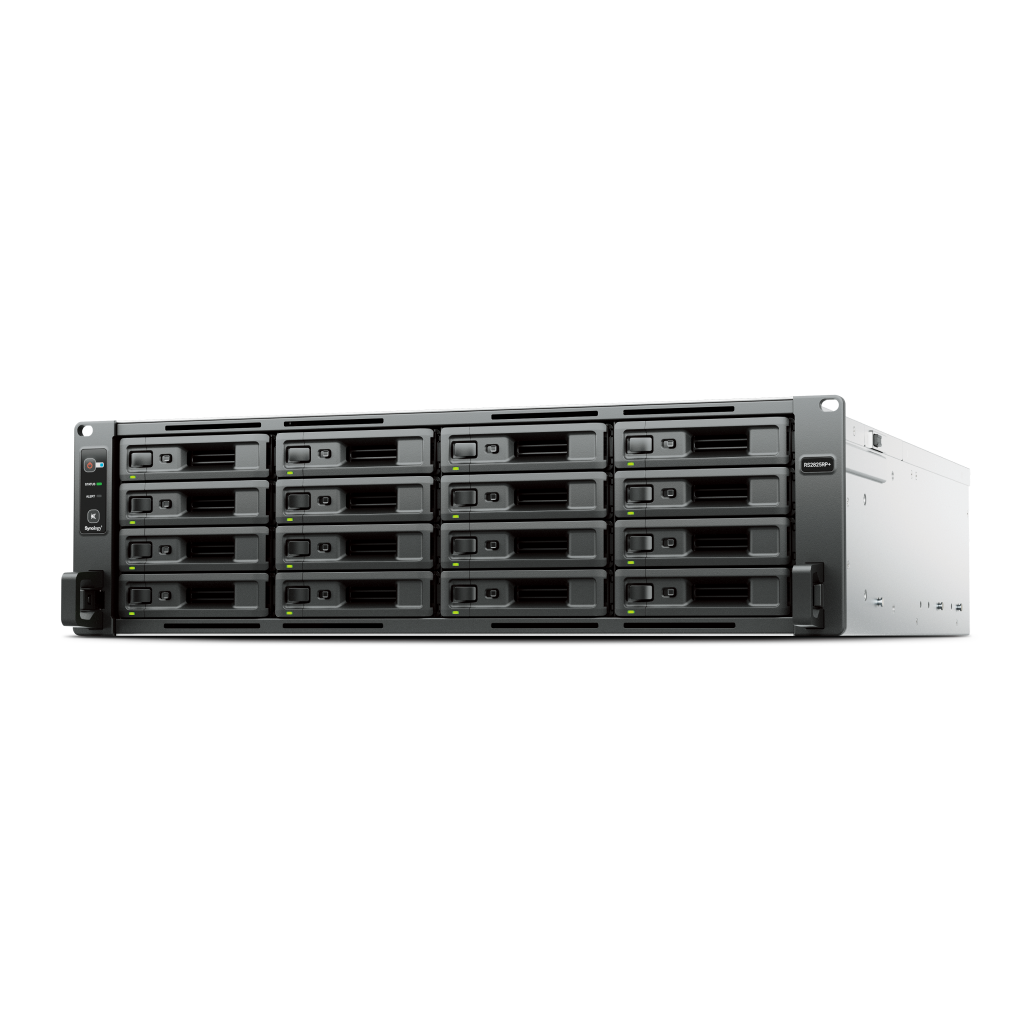
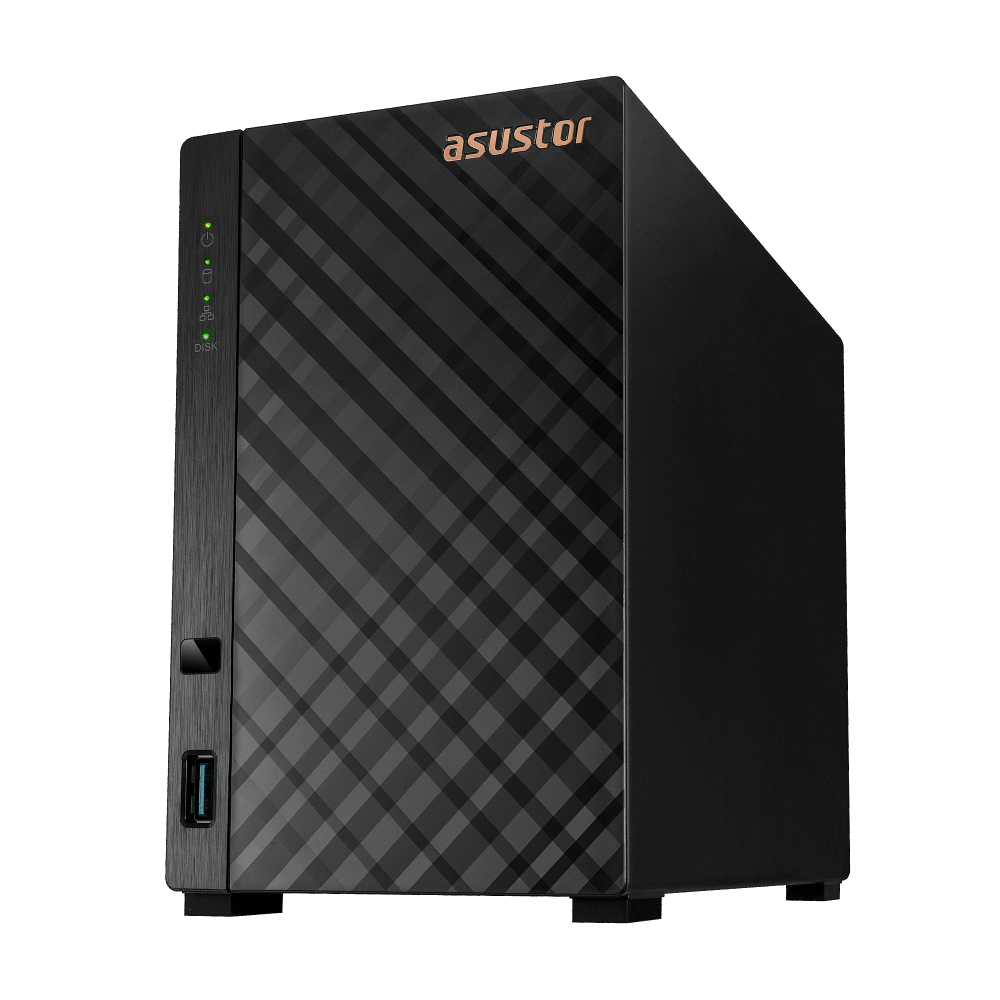
Synology DiskStation Manager provides file services, security, and management tools in a single interface. Features include SMB file sharing, Windows domain join, Windows style access control lists, and advanced capabilities such as Synology Drive, snapshots, replication, and policy driven backup. Most features are license free which keeps ongoing costs predictable. Hardware scales from four bay desktop models that run quietly on a shelf to rackmount units with expansion shelves, high speed networking, and high availability options. This range makes Synology suitable for small offices that want simplicity and for medium organisations that need capacity and performance with low maintenance.
- SMB file sharing and domain integration align with established IT practices, so user training requirements are minimal.
- Synology Drive provides private cloud sync and sharing that complements mapped drives and improves remote work.
- Snapshots, replication, and Active Backup for Business work together to meet recovery time and recovery point targets.
- Package ecosystem adds capabilities such as Synology Office, surveillance, and cloud backup connectors without overcomplicating the core file server role.
Diagram: Synology at the centre with SMB shares and Synology Drive clients on laptops and desktops.
File sharing and permissions in DSM
Configuration follows a straightforward flow. Create shared folders, define local groups that match your organisational structure or use Active Directory groups, apply permissions, and publish drive mappings with logon scripts or Group Policy. Synology supports Windows style ACLs on shared folders, including inheritance and explicit entries, which means you can mirror the same model used on traditional Windows file servers. This keeps the migration process smooth and reduces support calls after cutover.
Shared folder design
Start simple with a top level share named Company then create subfolders for departments such as Finance, Sales, Marketing, and Projects. Keep a separate Archive for completed work. Assign permissions to groups, not to individuals. For example, grant Finance RW full control to the Finance folder and read only to the Archive. For sensitive material like payroll, create a dedicated share with limited access and audit logging enabled.
Windows style ACLs
DSM implements Windows ACLs so admins can configure allow and deny rules with inheritance. Where legacy servers already have the correct ACLs, use migration tools to copy data while preserving permissions. Validate access using a non privileged test account from each department before switching users over. Document any exceptions and aim to resolve them after go live so the base model remains clean.
SMB performance and reliability
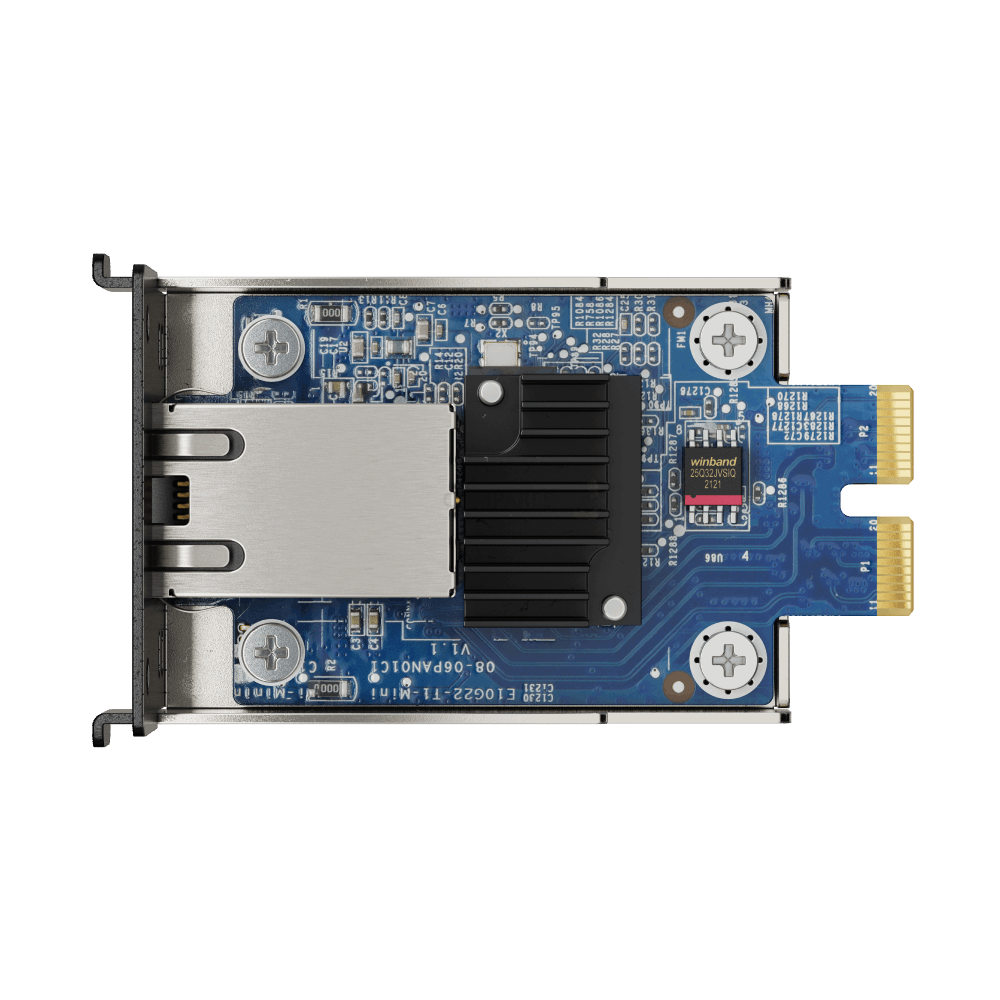
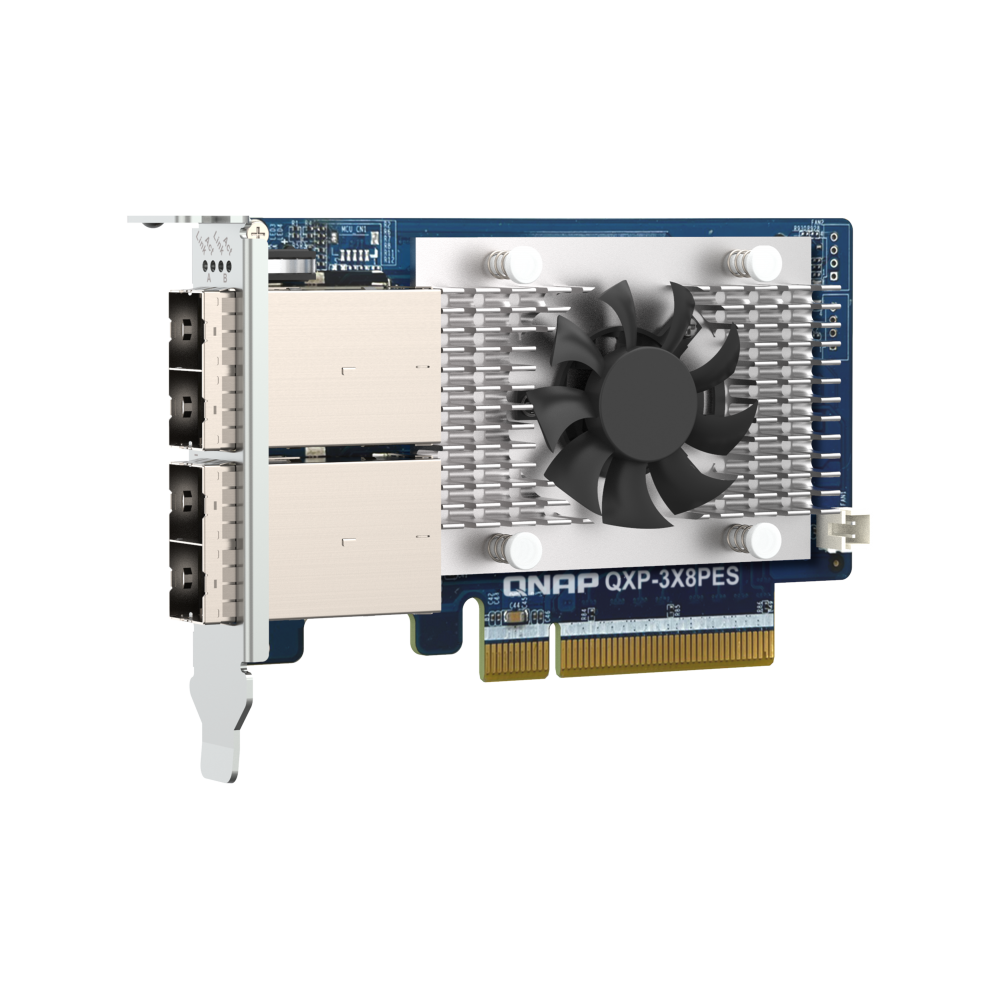
Enable SMB with modern dialects for current clients, and review options such as multichannel to take advantage of multiple network paths on supported models and switches. Adjust opportunistic locking and client caching for workloads with many small files. Keep firmware and clients current to benefit from protocol improvements. For very busy offices consider bonding network ports or using a 2.5 GbE or 10 GbE card where supported.
Image: DSM interface showing File Services settings and a shared folder permission grid. Use a branded mock that resembles DSM without using exact UI if needed.
Integration with Windows, macOS, Microsoft 365, and Google Workspace
Most environments are mixed. Synology supports SMB for Windows and macOS. Join the NAS to your Active Directory domain so users sign in with their normal credentials. Push drive mappings using Group Policy Preferences and use consistent UNC paths such as \\nas\company. On macOS, connect using Finder and save servers in login items. For cloud productivity suites, keep the NAS as the authoritative store for departmental data while integrating with email and calendar services. Synology Drive provides secure external sharing links with expiry dates so clients can download files without granting ongoing access.
Windows integration checklist
- Join the NAS to the domain and confirm time sync with the domain controller.
- Create a dedicated service account for backups and cross NAS replication with least privilege rights.
- Publish drive mappings with Group Policy and test with typical and roaming users.
- Review SMB signing and encryption policies in line with security standards and performance targets.
macOS integration checklist
- Standardise connection methods with saved servers and persistent mounts.
- Confirm Spotlight indexing works as expected for local mounts where required.
- Set expectations around file locking and collaboration on shared documents.
Private cloud through Synology Drive
Drive gives users an intuitive client for selective sync, on demand browsing, and offline access. Team folders map to departmental shares with the same permissions, so there is one source of truth. Version history lets users roll back to previous drafts without requesting help from IT. When paired with Synology Office, teams can co edit documents directly on the NAS without shipping every edit to a public cloud provider.
Data governance, auditing, and lifecycle management
File servers should support governance. Use group based permissions and name groups with a clear convention so audits are straightforward. Enable advanced logging to record access events for sensitive shares. Establish lifecycle policies so inactive project folders move to an Archive share and eventually to lower cost storage. Create a formal request process to grant and revoke access, with periodic reviews of group membership. Pair this with a data classification scheme that labels what is confidential and what can be shared externally. The goal is to simplify daily work while keeping compliance obligations visible.
Suggested policy templates
- Access control policy: Group based permission model, joiners movers leavers process, and monthly review cycle.
- Data retention policy: Active projects on fast storage, archive after completion, retain for seven years unless contracts require longer.
- External sharing policy: Synology Drive links must have expiry and password protection for sensitive files.
- Incident response: Steps to isolate a compromised account, disable sessions, and restore affected folders from snapshots.
Backup, versioning, and recovery
Rely on layers of protection. Snapshots provide quick recovery for shared folders and are space efficient. Active Backup for Business protects endpoints, servers, and virtual machines with centralised schedules and templates. Replication to a second NAS provides geographic resilience and gives you a fallback if a site is unavailable. Regular test restores provide confidence that the plan works when needed.
Snapshot strategy
Enable snapshot replication on critical shares. Adopt retention such as hourly copies for a day, daily copies for a month, and monthly copies for a year. Keep the schedule simple so it is easy to explain and audit. Train help desk staff to perform basic file and folder restores from snapshots to reduce response times.
Endpoint and server backups
Deploy the Active Backup agent to Windows and macOS endpoints and to physical servers where needed. Use templates to enforce encryption, schedules, and storage locations. Use bare metal recovery images to restore a failed workstation quickly with minimal reconfiguration. Keep a small inventory of spare hardware so that priority users return to service quickly after a device failure.
Offsite and immutable copies
Use a second NAS in a different office or data centre as a target for snapshot replication. For an additional layer, write periodic copies to object storage with immutability settings that prevent modification during a retention window. Document restore steps and store the document in a secure location independent from the NAS.
Diagram: Snapshot and backup strategy for business shares with a secondary NAS for offsite copies.
Security and secure remote access
Security is a practice that combines controls and habits. Start with least privilege, unique admin accounts, and multi factor authentication. Keep DSM and packages current, restrict management interfaces to trusted networks, and prefer VPN for remote SMB access. For external collaboration use Synology Drive with HTTPS, strong passwords, and expiring links. Consider encrypted shared folders for especially sensitive material and keep encryption keys off the NAS.
Recommended controls
- Groups control access. Avoid one off exceptions and document any temporary rights.
- Enforce long passphrases and multi factor authentication for administrators.
- Use change control for permission changes and for snapshot or backup policy adjustments.
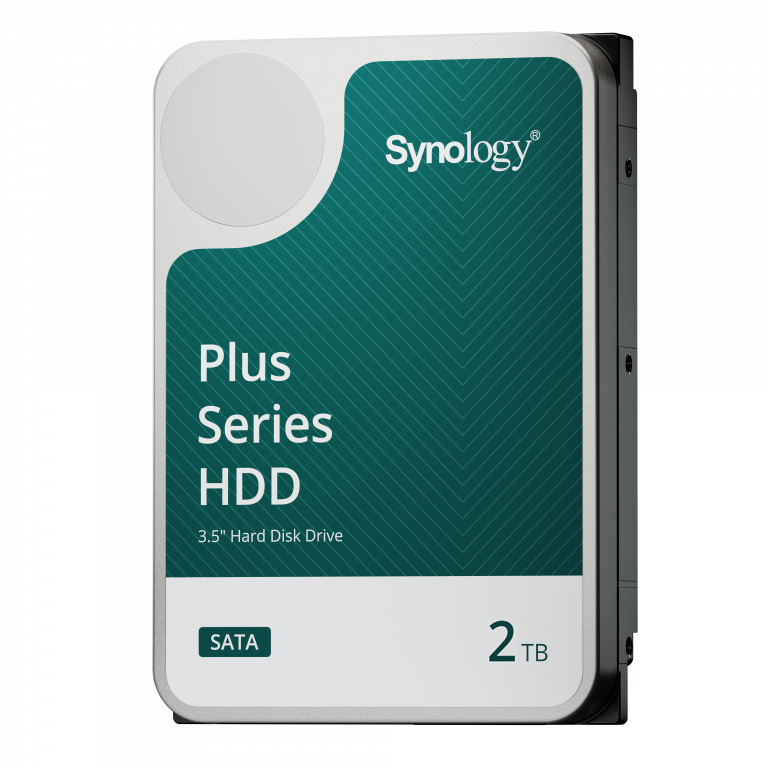
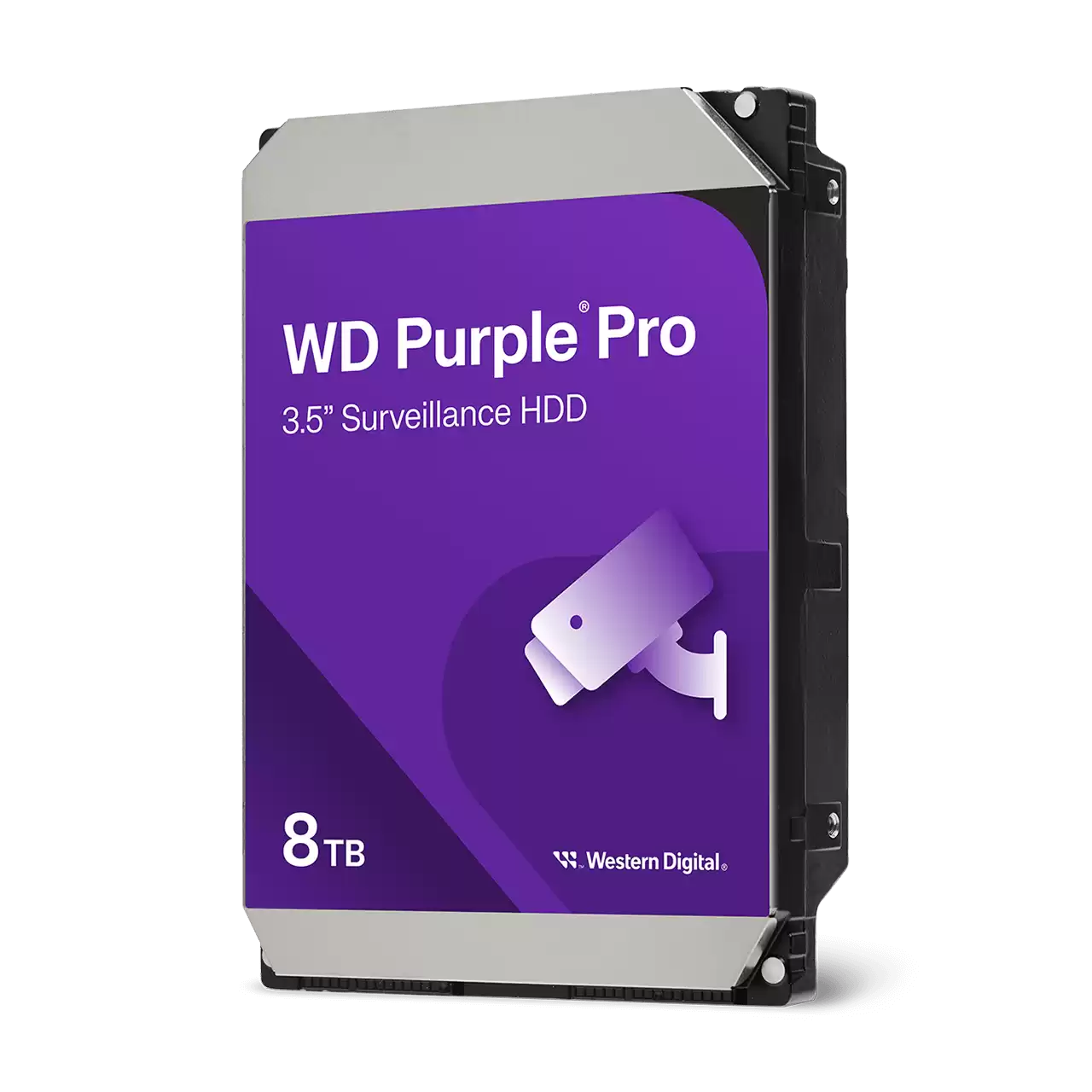
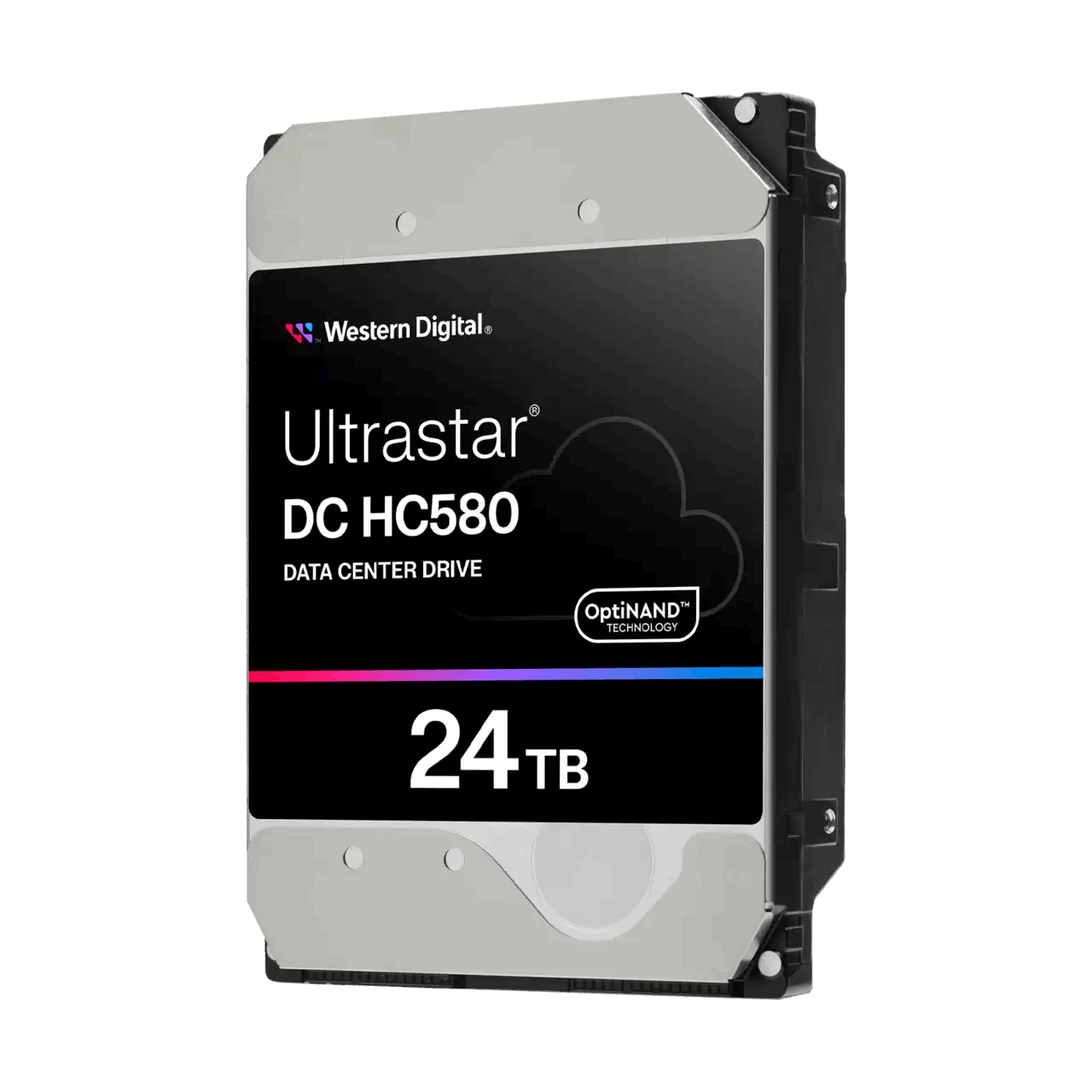
- Monitor storage health and alerts. Replace degrading drives proactively and keep cold spares.
Use cases for small businesses
Professional services with five to fifteen staff
A compact DiskStation serves documents and media to Windows and macOS devices. Map departmental shares for Finance, Sales, and Projects. Enable Drive so mobile staff sync current work to laptops. Back up PCs with Active Backup and replicate snapshots to a secondary NAS at a partner office. Train staff to restore previous versions from Drive and from snapshots so minor incidents do not require IT intervention.
Creative studio producing video and graphics
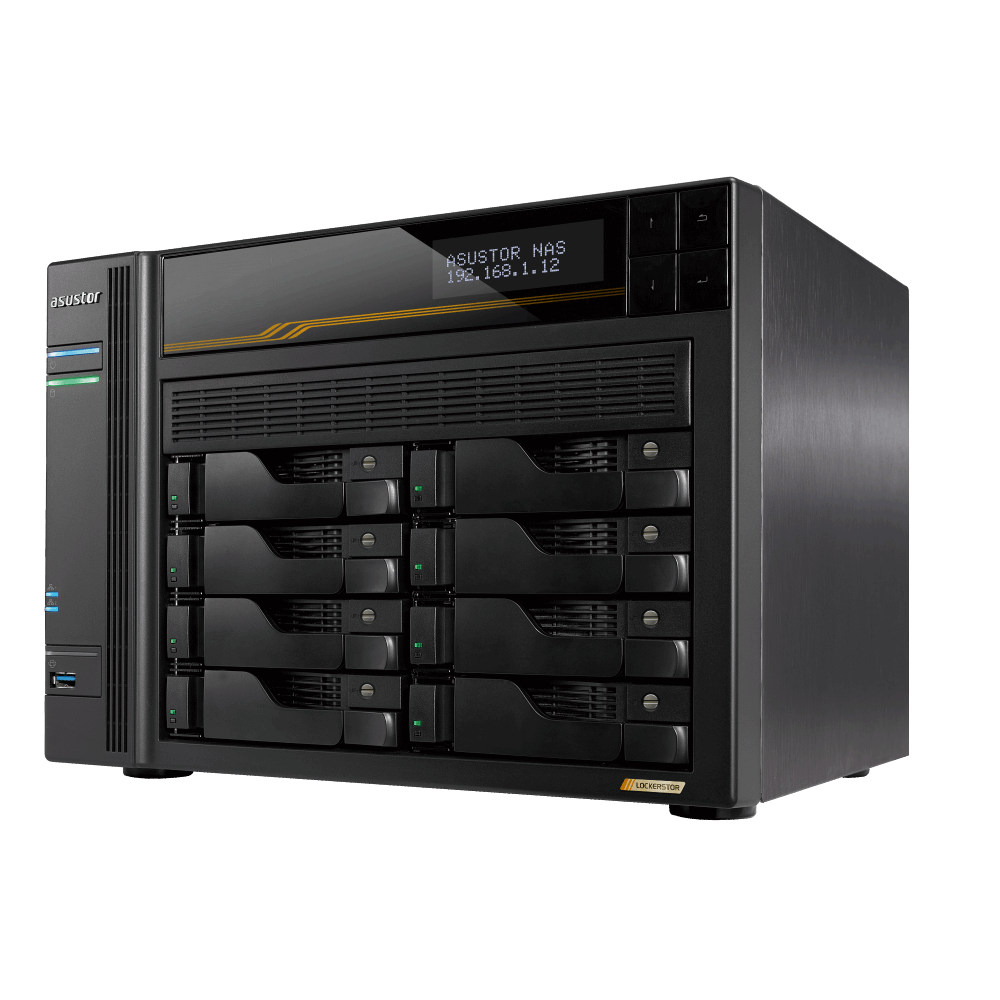
Use a 6 bay NAS with a mix of HDDs and SSD cache. Project folders hold raw assets, exports, and deliverables. Snapshots protect against accidental edits. Replication sends a nightly copy to a second NAS. Drive shares previews with clients using expiring links. Keep archives on a separate share and set clear rules for what stays on fast storage so the primary share remains responsive.
Retail business with a head office and one site
Centralise supplier contracts, store photos, and point of sale exports on the NAS. Enable remote Drive access for managers who work from home. Back up the POS server with Active Backup and store bare metal images. Test a full restore before peak trading. Keep a spare NAS on hand during the holiday period when shipping times can be unpredictable.
Image: Small business workspace with a desktop Synology alongside laptops and a label printer.
Use cases for medium businesses
Multi site organisation with distributed teams
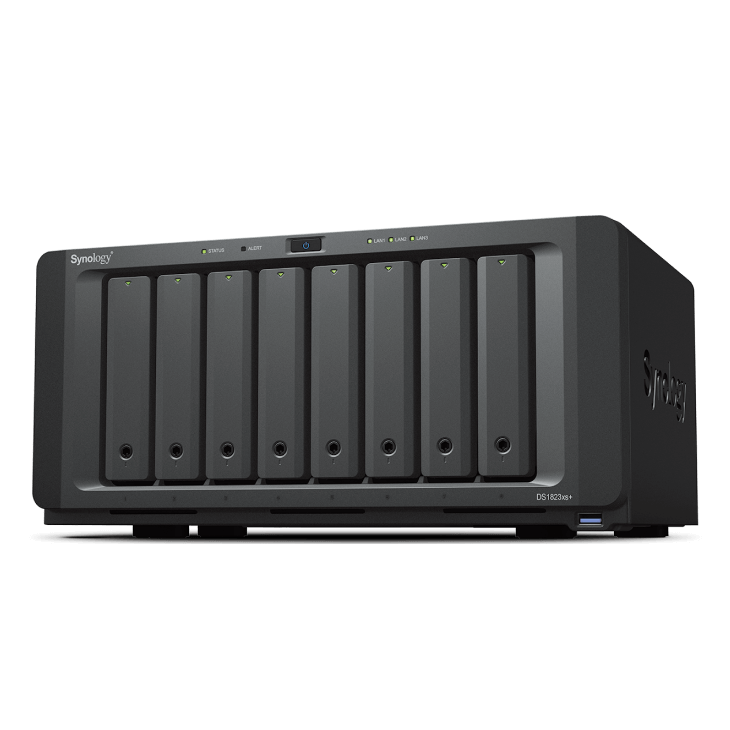
Place a rackmount NAS in the main office and smaller units in branches. Use team folders with permissions aligned to departments and replicate selected shares where cross site collaboration is required. Use a VPN for administrative access and Drive for end user remote access. Monitor capacity and performance centrally and standardise on models and drive sizes to simplify spares.
Engineering firm managing CAD and photos
Store models and drawings on a high capacity NAS with 10 GbE networking. Use snapshots for quick rollback and replicate to a secondary site. Adopt Drive to publish current drawings to site supervisors without emailing large attachments. Restrict contractor access to project scopes using group based permissions to keep exposure low.
Education or not for profit
Provide staff and volunteers with controlled access to documents from anywhere using Drive. Create a clear folder structure and apply least privilege. Back up endpoints with Active Backup using department templates. Enable additional logging on sensitive shares and maintain a simple external sharing policy that requires expiry for all links.
Deployment patterns and best practices
Network and performance guidance
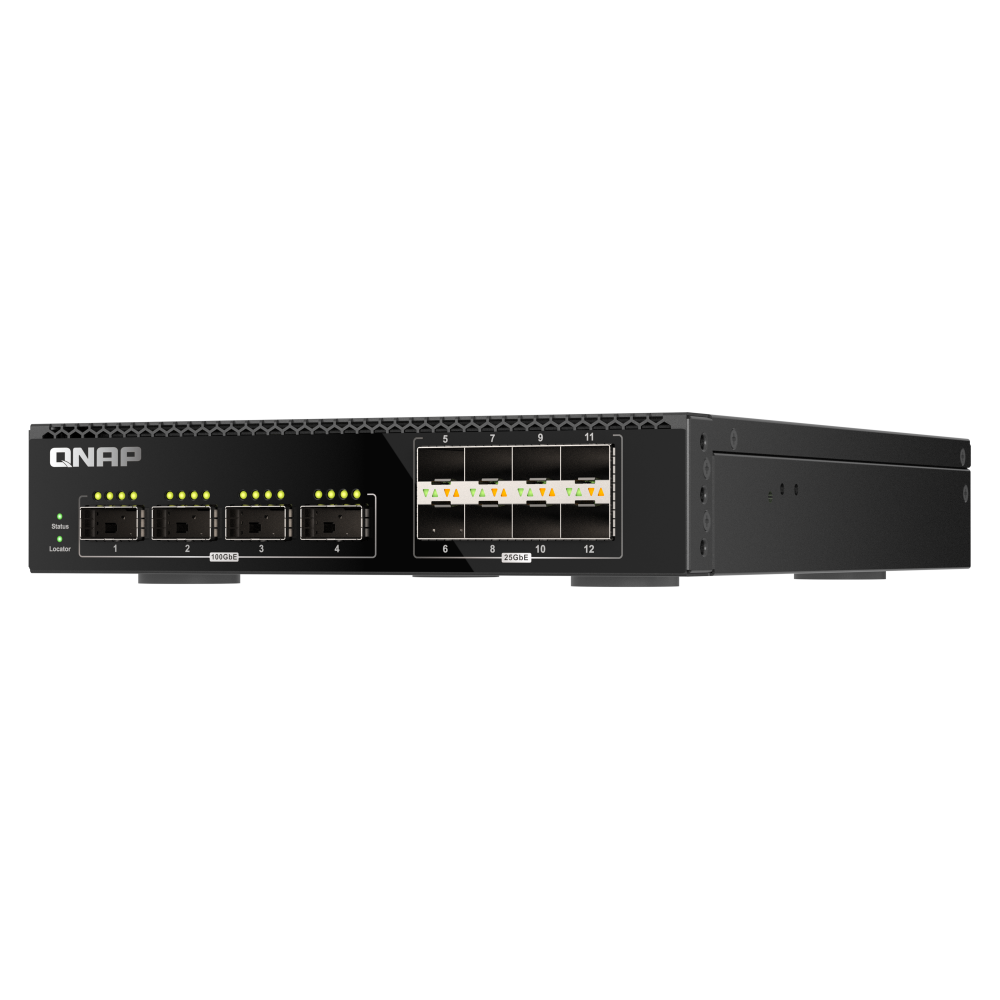
Use gigabit as a baseline and move heavy workloads to 2.5 GbE or 10 GbE where supported. Aggregate links on switches that support LACP if you need more throughput and resilience. Keep cabling neat and documented. For wireless only areas, prioritise wired connections for creators who move large files so uploads do not congest the wireless network.
Storage layout and capacity planning
Plan for three years of growth. Keep at least twenty percent free capacity for performance and snapshot overhead. Separate high churn shares from archives. Use SSD caching for read heavy workloads that access many small files. For rackmount models, maintain a cold spare policy and test drive replacement procedures so staff are confident when a drive fails.
Operational documentation
Write short procedures for common tasks such as creating a new share, granting access, restoring a file, and replacing a drive. Store these procedures where the help desk can reach them even during an outage. Review and update after any incident or when packages are upgraded.
Diagram: Mid sized deployment with a rackmount NAS in the main office and a smaller NAS at a branch site.
Migration plan from an existing Windows file server
Migrating from a Windows file server is a well understood process. The goal is to preserve permissions, avoid downtime, and simplify the user experience. The following staged plan balances risk and clarity.
1. Discovery and clean up
- Inventory shares, sizes, and permissions on the current server. Identify stale data and ownership.
- Agree on a target structure and naming convention with department owners. Remove duplicates and archive rarely used folders before migration.
2. Build and test
- Join the NAS to the domain. Create target shares and groups. Configure snapshots and initial backup policies.
- Copy a pilot set of data preserving timestamps and ACLs. Validate access with non admin test accounts.
3. Cutover
- Schedule department by department. Use a final delta copy after hours. Update logon scripts and Group Policy drive mappings.
- Communicate the change to users with a simple one page guide that shows how to reach their new paths and how to restore previous versions.
4. Stabilise and improve
- Monitor help desk tickets in the first week. Resolve permission gaps and document any one off exceptions.
- Enable Drive for teams that work remotely and educate users on version history and sharing links.
Troubleshooting and operational checklists
Common issues
- Users see access denied: Check group membership and inheritance on the folder. Confirm the user has a new token after changes by logging off and back on.
- Slow file browsing: Verify network speed, switch load, and SMB options. Check antivirus scanning on clients that may inspect network drives.
- Conflicting file edits: Encourage users to use Synology Office or check out documents. Educate teams on version history restores.
- Drive failure alerts: Replace the drive promptly. Keep spares and document the rebuild process. Avoid heavy changes during rebuild.
Weekly checks
- Review alerts and SMART status. Confirm backups and snapshots completed.
- Check capacity trends and plan orders ahead of time to avoid rush freight.
- Apply routine package updates during a maintenance window.
Quarterly tasks
- Run a test restore from snapshots and from Active Backup.
- Review group memberships with department owners. Remove temporary access.
- Audit external sharing links and expire any that are no longer needed.
Cost, sizing, and scalability
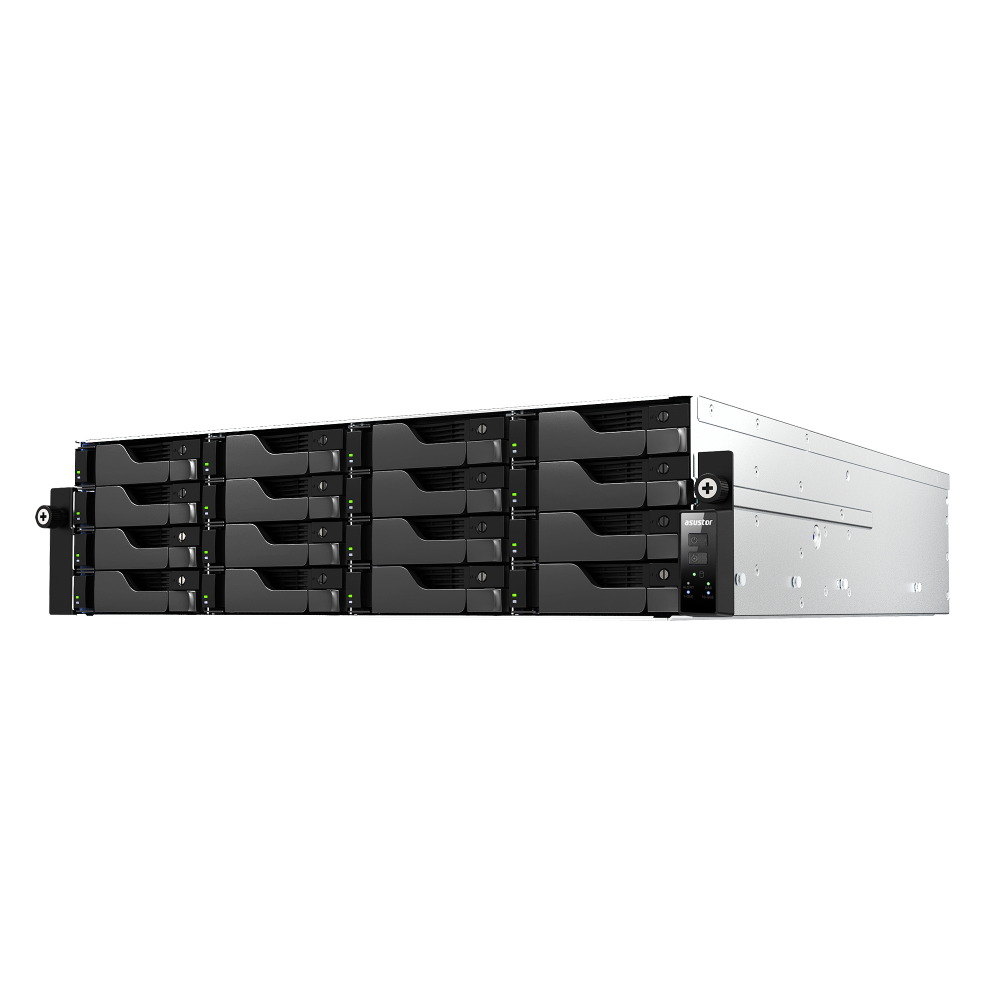
Synology provides predictable costs because most features are license free. Hardware scales in small steps so you can start with a modest configuration and expand. Desktop models suit small offices. Rackmount models support larger user counts, higher throughput, and expansion shelves that add capacity without a forklift upgrade. Plan purchases against data growth and retention so spend aligns with value. When a workload outgrows a single unit, consider high availability pairs and faster networking to remove bottlenecks.
Right sizing tips
- Estimate current data size and growth. Add headroom for projects and media.
- Choose RAID that balances performance and resilience. Keep cold spares for faster rebuilds.
- Adopt 2.5 GbE or 10 GbE for teams that move large files.
- Plan for a second NAS for replication where uptime is important.
Getting started with NAS Marketplace
Our Melbourne team helps size, configure, and deploy Synology file servers for Australian businesses. We can provision drives, create your initial folder structure, apply permissions, and deliver the unit ready to plug in. Explore models and learn how to choose the right NAS for your needs using the links below.
Explore Synology NAS models
Browse DiskStation and RackStation units suitable for business file serving.
View Synology NASSmall business file servers
Compact, quiet, and dependable options for five to twenty users.
Shop small business NASFrequently asked questions
Can Synology replace a traditional Windows file server?
Yes. Synology supports SMB, domain join, and Windows style ACLs. For many organisations, the migration is straightforward and the user experience is the same or better.
How do users access files remotely?
Use VPN for SMB access or deploy Synology Drive for secure HTTPS access with offline sync and expiring sharing links.
How are files protected from accidental deletion or ransomware?
Enable snapshots on shared folders and use Active Backup for Business for endpoints and servers. Replicate to a second NAS or cloud storage for offsite protection.
What models should we consider?
Smaller teams often start with a desktop DiskStation. Medium businesses typically choose RackStation models for performance and capacity. Our team can help size to your growth plans.