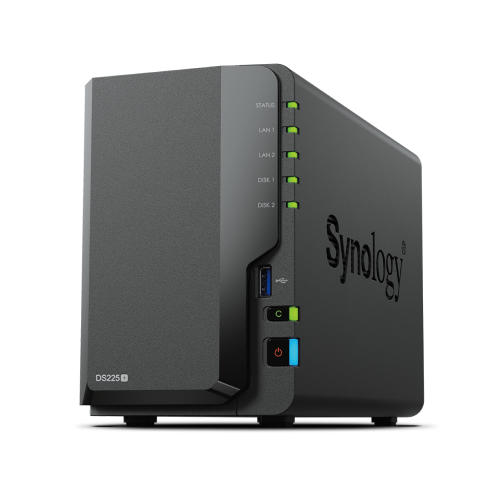
DSM reads UPS status over USB or network and can trigger automatic shutdown when battery is low or on timer thresholds.
Enable UPS monitoring
Connect the UPS and confirm DSM detects it.
Attach the UPS USB cable to the NAS or configure a network UPS
Open Control Panel and enable UPS support
Set safe shutdown at a battery level or time on UPS
Email and push alerts
Alerts help you react quickly when power events occur.
Configure email or push notifications in Notification settings
Enable alerts for AC loss, low battery, and shutdown events
Send a test alert and verify it reaches the right people
Network UPS server for multiple devices
Share one UPS with multiple NAS units using DSM as a network UPS server.
Enable the network UPS server on the NAS connected to the UPS
Authorize client devices by IP or hostname
On each client NAS, select Network UPS and point to the server
Logging and reports
Keep a basic record of power events for audits and troubleshooting.
Review System Logs for UPS messages
Export logs quarterly and keep them with maintenance notes
Record battery replacement dates and UPS tests
Testing and drills
Validate behaviour before you depend on it.
Simulate a brief outage by unplugging UPS input and observe events
Confirm clean shutdown at the configured threshold
Retest after firmware or configuration changes
FAQs
Quick answers to common UPS monitoring questions.
Do I need SNMP for UPS? USB or network UPS protocols are usually sufficient
Can multiple NAS share one UPS? Yes with the network UPS server feature
How often should I test? Twice per year or after major changes
Need technical support or more detailed guidance? Please contact Synology via our Synology Support – Australia page. It includes ticket, Live Chat, warranty and downloads links.
UPS Monitoring in DSM: Alerts, logging, and clean shutdown
Posted By Ethan Ro
on
We’re Here for You
Whether it’s setup, troubleshooting, or custom solutions or simply tracking your order — we’ve got you covered.